
10.21.2008

9.16.2008
THE SYLLABUS/ FALL 2008
MLJ 210
Print Media
Spring 2008
Instructor: Ulises Gonzales/ Office: CA 273
Office hours: T 10-1/ 5-6 and by appointment)
Time: Tuesday 6 p.m.-9:30 pm
Room: CA 119
Office phone: 718-960-7805/ Cell: 718-7243787
e-mail:ulisesgg@yahoo.com
web: www.ulisesgonzales.blogspot.com
Tuesday 9-2
The Mac. Introduction/ Photoshop. Selection tools. CMYK and RGB/Duotone/ Resolution/ Getting images online/ Layers/ Colors/ The blog.
Tuesday 9-9
Photoshop Tools/Collage/Paste into/ Eraser/Feather & Crop/ Using the Stamp tool to fix an image.
Tuesday 9-16
Photoshop Tools. Getting images using the Pen tool/ Path. Presentation of Adobe Illustrator. Using Photoshop and Illustrator together. Exercises using Illustrator. The Illustrator Pathfinder window. Create the logo for your business card.
Tuesday 9-23
Finish your business card. Create two business cards (3.5” x 2”) Create a postcard (
Tuesday 9-30
NO CLASS
Tuesday 10-7
Quark Xpress. Tools. Boxes. Different kinds of layout. Fonts and layout. Designing your layout on paper.
Tuesday 10-14
NO CLASS (Monday schedule)
Tuesday 10-21
Creating the cover of a magazine using Photoshop, Illustrator and QuarkXpress.
Tuesday 10-28
Exercises using Quark Xpress tools.
Presentation of ½ of the final folder (Real examples of the use of Illustrator and Photoshop in print media)
Tuesday 11-4
Create a 1-page newsletter using Quark. Create a 4 page newsletter.
Tuesday 11-11
Working on your 4-page newsletter. Book and magazines layout: Exercises
Tuesday 11-18
Presentation of your newsletter/ The newspaper. Tabloid and Spread sheet newspapers. Layout of a newspaper. Tips for the layout of the front page of your own newspaper. Getting from Quark to the Web.
Tuesday 11-25
Exercise: The front page of the newspaper.
Tuesday 12-2
Exercise:The front page of the newspaper.
Tuesday 12-9
Exercise: The front page of the newspaper/Starting presentations of the blogs
Tuesday 12-16
Presentation of the blogs (Work during the semester). Presentation, in class, of the front page of your newspaper. Presentation of the portfolios (real examples of the use of Photoshop, Illustrator and Quark in print media.)
The blog, at the end of the semester MUST display: all the exercises worked in class during the semester , the final personal logo worked in the class, the final business card worked in the class, the 1-page newsletter, the cover of the magazine worked in the class, the first page of the 4-page newsletter. Every post should have your comments on your work.
The portfolio at the end of the semester MUST have: 5 illustrations worked with Illustrator, 5 images worked with Photoshop, 3 magazine covers, 3 newsletters, 3 front pages of different newspapers.
Grades:
Attendance 15%
Work in the class: 55%
Final Blog: 15%
Final folder: 15%
6.05.2008
5.13.2008


4.15.2008

3.18.2008


A common mistake (Quark Xpress Project)

You fix this, adding some distance from the text to the box edges, using Modify>Text
3.11.2008
MARCH 11: Cover of a magazine

Exercise using Photoshop, Illustrator and Quark Xpress
For more information on this exercise go on this blog to the right side of the screen: Archives>September 2005
Logo White Horse

Use the Photoshop's "pen tool" to make a selection of the horse
Save the path
Copy an paste (fully editable) on Illustrator
Work the logo on Illustrator.
3.04.2008
The Pen tool (to create a logo to work on the business card)
To get shapes from Photoshop to create a logo with Illustrator you can use the Pen Tool. The pen tool is a more precise tool for selection of pixels than the other tools we used in the class: The magic wand, the lasso, the magnetic lasso.
You make a selection, then you save the selection as a path and copy that path from Photoshop. You paste it onto your Illustrator document.
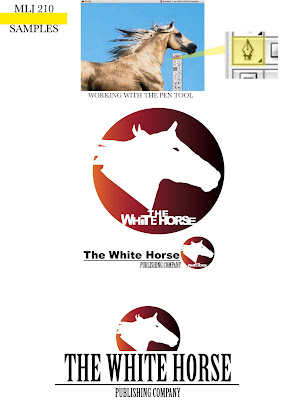
You make a selection, then you save the selection as a path and copy that path from Photoshop. You paste it onto your Illustrator document.


2.25.2008
CLASS 3: Business cards
BUSINESS CARD
Size of the business card:
3.5" x 2"
Hi class!
I hope your weekend was great.
For tomorrow's class we are going to work on your "Business cards". We are going to work them using a lot of Illustrator and a little bit of Photoshop.
If you can bring models of business cards that you would like to learn how to make please bring them to the class.
If you have digital pictures of you (close ups work better, or id pictures if you don't have regular ones) or any picture of idea or logo that you would like to have , bring them to the class (or have it in your e-mail or somewhere in the web to download them to your computer). Try not to bring anything to scan in the class because the scanner sometimes causes a lot of trouble and takes a lot of time to scan pictures in the class.
See you tomorrow,
u.
2.19.2008
PHOTOSHOP (Paste into) & BART/ Exercise Illustrator/Pathfinder/ Effects/Shadow

Filling text with pictures
Using the Paste Into option
Photoshop
Create a New Document
Photoshop>File>New
SIZE: 12 inches width/3 inches height/ White Background/ RGB
Select the Type Tool
Type YOUR NAME (Size: Between 110-120 points)
Font: Gill Sans Bold
Select up to three (3) pictures form the web. High Quality. (You can use the tool Google Images>Large Images)
1. You copy the picture that you want to past into the Text
(If it is the whole picture you just use the Apple+A and then, Apple + C (Copy) )
2.Select the letter or letters that you want to fill. Because they have the same color you can use the Wand tool
3. Paste the picture INTO the letters (Photoshop>Edit>Paste Into)
4.You can modify the size of the picture,s the colors, you can apply filters according to your creativity.
5. Give the letters a stroke 10 px. (any color) Photoshop>Edit>Stroke>
5.Flatten Image (Photoshop>Layer>Flatten Image)
6.Crop any excessive background (Crop tool)
6.Save as jpg.
7.Upload the image to your blog


2.14.2008
New fonts?

You can get new fonts for your projects. This is one of the many web sites you can get fonts:
www.dafont.com
CLASS 2/ FEBRUARY 19

THE ADOBE ILLUSTRATOR Tools BOX:


Exercise using the Pathfinder window.

Exercise using Effects (Efects>Stylize>Drop Shadow)
When using the Drop Shadow effect, use the measurements by default

Subscribe to:
Posts (Atom)
